 Heft
HeftThe Cleaner
Windows · macOS · LinuxThe Cleaner removes caches, temporary files and logs that programs recreate when they need them. It only looks in places it knows, and shows you every file before it removes anything.
Using the Cleaner
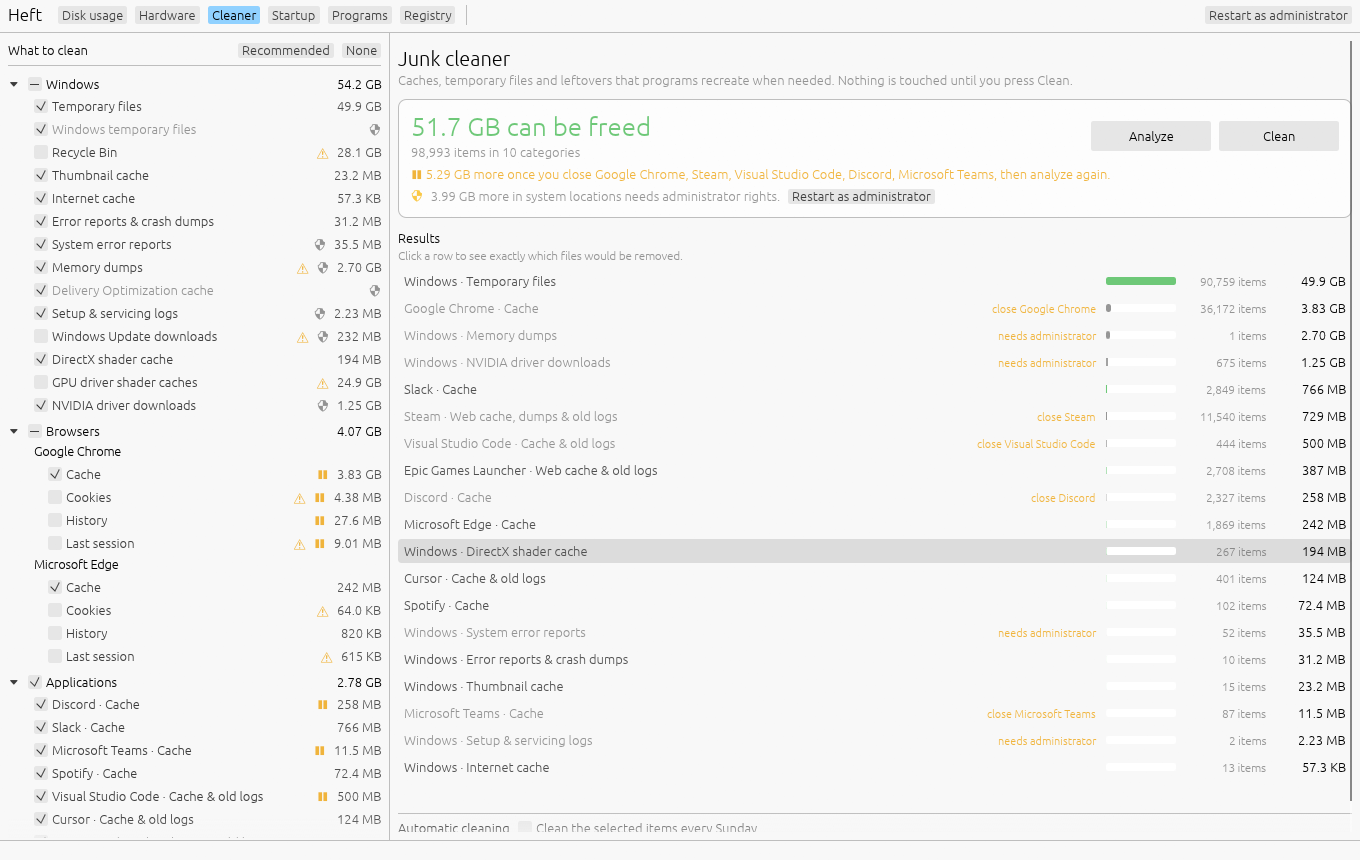
- Open the Cleaner page. Heft analyzes right away; this only reads, and takes a few seconds.
- Look over What to clean on the left. Each item shows how much it would free. Recommended ticks Heft's defaults (caches and temporary files only), and None clears everything.
- Click a row in the results to see exactly which files would be removed. Double-click a file to show it in Explorer (Finder on a Mac). Back to all results returns to the list.
- Press Clean and confirm.
Some items are marked in the list:
- ⏸ Close the program first. Heft skips a program's caches while it's running, so it never pulls files out from under it. Close it and press Analyze again.
- 🛡 Needs administrator rights. On Windows, system-wide locations such as Windows Update downloads and memory dumps need Restart as administrator. On a Mac, the items marked 🛡 (system logs and the DNS cache) ask for your administrator password instead: Heft does everything else first, then macOS asks once, at the end of the clean.
- ⚠ Has a side effect. Hover to see it. Cookies sign you out of every website, emptying the Recycle Bin is permanent, and developer caches download again on the next build. Apart from memory dumps, which only matter if you're troubleshooting crashes, none of these are ticked by default.
Your selection is remembered for next time. Programs that aren't installed are hidden, so the list only shows what's on your computer.
Cleaned files are deleted rather than moved to the Recycle Bin, because programs recreate them anyway and recycling caches would just move the clutter. The confirmation dialog says so.
What it covers
| Group | Examples |
|---|---|
| System | Temporary files, the Recycle Bin or Trash, thumbnail and shader caches, error reports and crash dumps, old logs. On Windows also Windows Update and Delivery Optimization downloads, setup logs and NVIDIA driver downloads. On macOS also Quick Look thumbnails, Metal shader caches, iPhone and iPad software updates, and system logs in /Library/Logs. |
| Browsers | Chrome, Edge, Firefox, Brave, Vivaldi, Opera, Opera GX and Chromium, plus Safari on macOS. The cache is ticked by default. Cookies, history, form history and the last session are there too, each with a note on what you'd lose. Safari's cookies, history and last session are only listed when Heft has Full Disk Access. |
| Applications | Discord, Slack, Teams, Spotify, Visual Studio Code, Cursor, Steam, Epic Games Launcher, JetBrains IDEs, Adobe and Java. On a Mac, new Teams' cache is only listed when Heft has Full Disk Access. |
| Developer tools | Package and build caches for npm, Yarn, Bun, pip, Cargo, Go, Gradle, NuGet, Deno, Composer and Electron. On macOS also Homebrew, Xcode (DerivedData, simulator caches, simulators for runtimes you no longer have, device support files), CocoaPods, and Docker's build cache and dangling images. |
| Privacy | Recent items, the clipboard and the DNS cache. On Windows also Run dialog and Explorer address bar history, and on macOS Finder's recent folders and Go to Folder history. None are ticked by default. |
Heft has no rules for saved passwords, and none for the Windows Prefetch folder: clearing Prefetch makes programs start more slowly, not faster.
How it stays safe
- Every rule names exact locations. There's no searching the disk for anything that looks like
*.tmp. - A rule is skipped, not guessed, if its location can't be found or would point at a top-level user or system folder.
- Links and junctions are never followed, so a cache folder can't lead Heft somewhere else.
- Files that are in use are skipped, never forced.
- Cleaning removes the files the analysis found, not whatever turns up in the folder later.
- On a Mac, system files are only ever deleted from the exact list Heft showed you, never as whole folders.
System caches on Linux
On Linux, some caches belong to the system, and the right way to clear them is the tool that owns them. Heft runs those tools instead of deleting files itself:
apt-get cleananddnf clean packagesfor package caches;journalctl --vacuum-time=2weeksfor old system logs;- removing old, disabled snap revisions;
flatpak uninstall --unusedfor runtimes no app needs.
Heft shows the estimated saving first. Commands that need root go through pkexec, which asks for your password with your desktop's own prompt, once per clean. On macOS, the Xcode simulator cleanup runs xcrun simctl delete unavailable in the same spirit.
Weekly cleaning (Windows and macOS)
At the bottom of the Cleaner page, tick Clean the selected items every Sunday. Heft then runs heft --clean with your current selection at noon every Sunday.
- On Windows, this adds a scheduled task called
Heft\Weekly clean. If you set it up while running as administrator, the task runs elevated too, so administrator-only items are included. - On a Mac, this adds a launch agent,
io.github.gjnail.heft.weekly-clean, in~/Library/LaunchAgents. macOS shows a "Background Items Added" notice and lists it in System Settings › General › Login Items & Extensions. Nobody is there to type a password, so the weekly clean skips items that need your administrator password, and anything that would restart Finder.
Untick the box to remove it. On Linux, you can schedule heft --clean yourself; see Command line.
WSL and Docker disks (Windows)
WSL 2 distros and Docker Desktop keep Linux's files in a virtual disk (.vhdx) that grows as Linux writes data but never shrinks when the data is deleted. The WSL and Docker disks section finds them and shows their size.
- Tick the disks to compact and press Compact.
- Heft can first run
fstriminside each WSL distro, so the disk knows which space Linux has freed. - It shuts WSL down with
wsl --shutdown, then compacts every disk with diskpart in one go. Windows asks for administrator permission once.
Large disks can take minutes. When it's done Heft shows each disk's size before and after. Disks already set to sparse shrink by themselves and can't be ticked.
Windows' own tools
Some cleanup belongs to Windows. The Cleaner page has shortcuts to:
- Storage Sense, Windows' automatic cleanup settings;
- Disk Cleanup, which can remove a previous Windows installation (
Windows.old); - Component store cleanup, which runs DISM as administrator to remove superseded Windows updates from WinSxS. It opens a console window and can take a while.
macOS's own tools
On a Mac, the Cleaner page has shortcuts to:
- Storage settings, System Settings › General › Storage, which shows what uses the space and offers recommendations such as emptying the Trash automatically;
- Thin Time Machine snapshots, when Time Machine is keeping local snapshots on the disk. macOS removes them by itself when space runs low; this asks it to do so now, in a Terminal window. Backups on your Time Machine disk aren't touched.
Without Full Disk Access, Heft can't see inside the Trash, Safari's cache or Recent items, and it doesn't list Safari's cookies, history and last session or new Teams' cache, which macOS keeps in protected places. The page says so and has a button to open System Settings › Privacy & Security, where you can allow it. Quit and reopen Heft afterwards.
Safari's history comes back if Safari syncs through iCloud: your other devices send it back. To clear it everywhere, use History › Clear History in Safari.