 Heft
HeftDuplicates and saving space
Windows · macOS · LinuxFind duplicate files, and win back space without deleting anything: replace copies with links, compress folders, move a folder to a bigger drive, or keep iCloud Drive files only in iCloud.
Finding duplicates
- Scan a drive or folder, then open the Duplicates tab.
- Choose a minimum size under Files of at least. Small files rarely matter and take the longest to compare.
- Press Find duplicates.
Heft compares files in three rounds: first by size, then by a sample of their content, and only then by reading them in full. Files that differ are ruled out early, so most of the drive is never read. Hard links aren't reported, because they're already one file with two names, and online-only cloud files are skipped so nothing gets downloaded.
Results come in groups of identical files, largest first. Select all but the oldest ticks every copy except the oldest in each group. Then either:
- Recycle the selected copies, or
- Replace with links (or clones), so every copy stays where it is but the data is stored once. Read on.
Replacing copies with links or clones
Sometimes you want a file in two places: the same photo in two albums, the same installer in two project folders. Instead of deleting one, Heft can make both names share the same storage. Select the extra copies on the Duplicates tab and choose Replace with links or Replace with clones; the button says which one your drive supports.
Heft compares every byte again right before replacing a file, then swaps the copy for one of these:
| Clone | Hard link | |
|---|---|---|
| Used on | ReFS and Windows Dev Drives, APFS (Mac), Btrfs and XFS (Linux) | NTFS (Windows), ext4 and other Linux file systems |
| What it is | Two separate files that share space until one of them changes | One file with two names |
| If you edit one copy | Only that copy changes | Both change, because they're the same file |
| Good for | Anything | Files you don't edit: photos, music, videos, installers, archives |
Hard links and documents don't mix. With hard links, changing one copy changes all of them. Heft asks you to tick "I understand that changing one copy will change all of them" before it makes any.
With clones, scans still show both files at full size, since each is a complete file. The drive's free space shows the difference. Files in system and program folders are always left alone.
Compressing a folder (Windows and macOS)
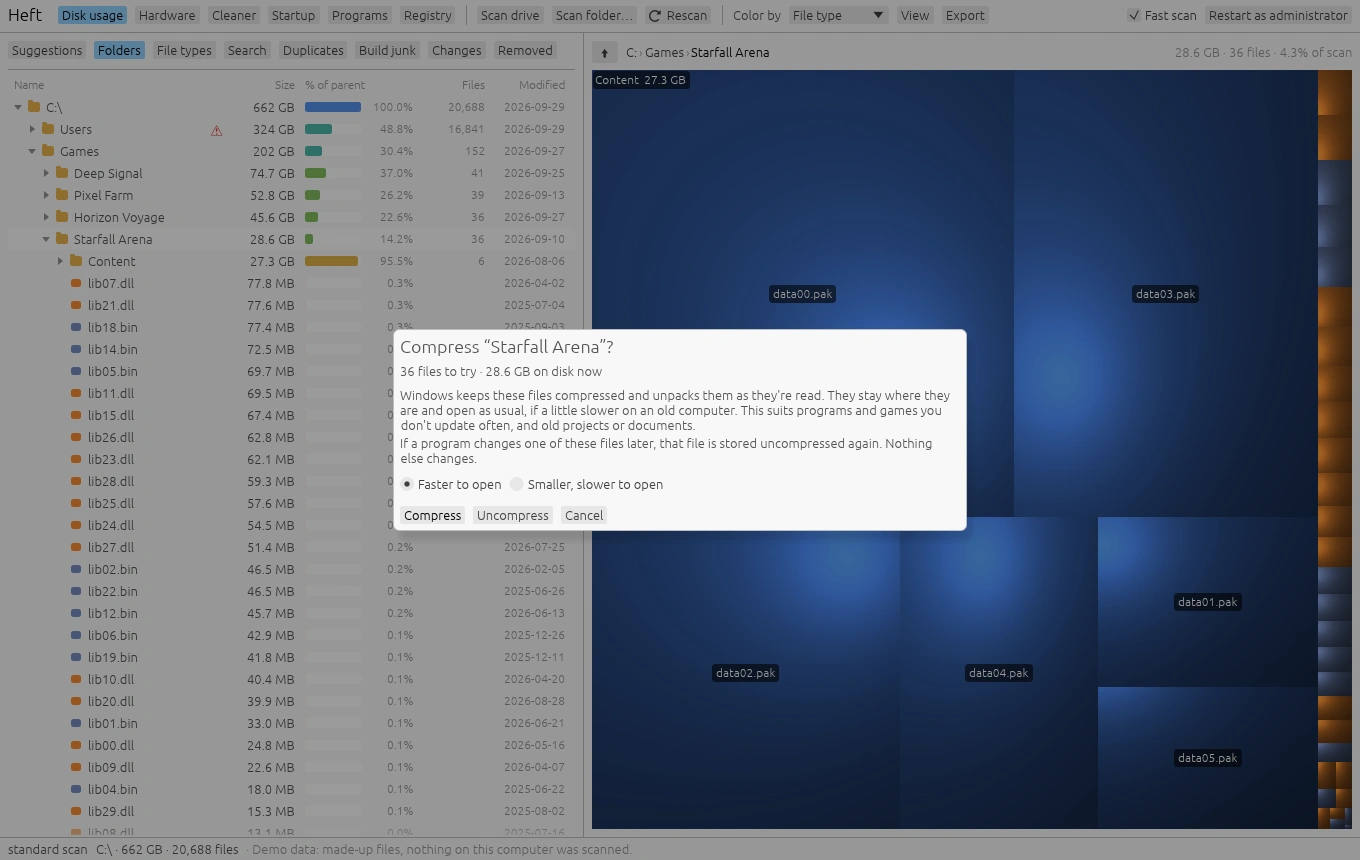
The system can keep files compressed and unpack them as they're read: on Windows (NTFS drives) the same way compact /EXE does, and on a Mac (APFS and HFS+) with the file system compression Apple uses for macOS's own files. The files stay where they are and open as usual, if a little slower on an old computer.
- Right-click a folder and choose Compress.
- On Windows, pick Faster to open (XPRESS) or Smaller, slower to open (LZX). On a Mac there's no choice to make, because macOS picks the compression method.
- Press Compress. Heft reports how much space it saved when it's done.
When a program later changes one of the files, that file is stored uncompressed again. So this suits programs, apps and games you don't update often, and old projects. Photos, video, music and archives are already compressed and are skipped, and so are disk images and installer packages. The Suggestions tab lists programs, apps and games that haven't changed in three months.
Files a running program has open are skipped. Uncompress in the same dialog undoes it, as long as the drive has room for the files at full size. Heft won't compress Windows itself; for that, run compact /CompactOS:always as administrator.
On a Mac, each file is compressed into a copy, checked byte for byte against the original, and only then swapped in, so the original is untouched if anything goes wrong. Files that belong to macOS, locked files, hard links and apps that are running are skipped; macOS already keeps its own files compressed. Apps installed for all users, from the App Store or an installer package, belong to the system: the dialog offers to include them, and Heft then does the same copy, check and swap for their files as root, after your administrator password. Before Heft changes an app from another developer, macOS may ask you to allow Heft under System Settings › Privacy & Security › App Management.
Moving a folder to another drive
Running out of room on a small system drive? Move a big folder to another drive and leave a link behind, so programs that use the old location still find it.
- Right-click a folder and choose Move to another drive.
- Pick a drive under Move it to, or Choose a folder. Drives without enough free space are marked.
- Heft copies the folder, checks every file against the original, and only then puts a link in its place: a junction on Windows, a symbolic link on macOS and Linux.
The original goes to the Recycle Bin or Trash; empty it to get the space back. Keep the other drive connected, since anything that uses the folder fails while it's missing.
Heft won't move system folders, the folder you scanned, folders that are already links or contain links, or folders with online-only files (copying them would download them). To undo a move, delete the link and move the folder back.
Removing iCloud Drive downloads (macOS)
Files in iCloud Drive are usually downloaded to the Mac as well. Removing the download frees the space here while the file stays in iCloud, the same thing Finder's Remove Download does.
- Right-click a file or folder in iCloud Drive (or in Desktop and Documents, if they sync with iCloud) and choose Remove download. The Suggestions page also lists big iCloud Drive files that haven't changed in a month.
- Heft lists the files and how much space they take, and removes the downloads once you confirm.
Nothing is deleted: each file stays in its folder and downloads again when you open it, which needs an internet connection. Heft only touches files iCloud has finished uploading and whose copy here is the current version, so a change that exists only on this Mac can't be lost. With Optimize Mac Storage on in iCloud Drive's settings, macOS does the same by itself when space runs low.